
This site is for Mission Linen Supply Customers who are 'Ledger' payment type and want to view/print/pay invoices and statements. (For Webstore ordering you need to be on the Webstore site.)Q: Do I have to register to access the site to pay my bill online?A: Yes, you must register to access the site, view statements, and pay bills online. Registering is easy. To get started click the "Register Now" button at the top of this page. You must have your Customer Number and Billing Zip Code to begin. |
Q: I want to view a statement and tried to register, but I can't remember my Customer Number and Billing Zip Code.A: This information is on your invoice/statement. You can click on the 'Help?' or 'Chat' in the bottom right and provide your business name and address. You will then be provided the customer number and billing zip code needed to register. |
Q: On the registration page I clicked "Submit" and a message appeared indicating that my email address is already on file. How can I access the site to view my statement information?A: You may see this message if you press the "Submit" button twice, or if you have attempted to register once before. You only need to register one time to access this site. If there is an email address on file, you may log in by entering your email address and password. If you forgot your password, click “Forgot your password?” on the home page: https://myaccount.missionlinen.com/. |
Q: I forgot my password. How can I reset it?A: You may reset your password by clicking on the "Forgot your password?" link located beneath the login form here: https://myaccount.missionlinen.com/ or go directly here: https://myaccount.missionlinen.com/register/forgot-password. |
Q: I entered a new password in and it won’t accept it.A: All passwords must be at least 6 characters long. If your account is locked you need to click on the 'Help? or Chat' link at the bottom right and provide your email address. |
Q: I followed the steps to reset my password, but never received an email to re-enter a new one or your account is locked.A: Check your junk mail to see if the email was sent there. If you still cannot find the email, Click on "Help? or Chat" at the bottom right and provide your email address, we will send you another password reset confirmation email or unlock your account. |
Q: I am worried about giving my credit card over the Internet. Is your site secure?A: Mission Linen Supply does not store any credit card information entered on the site beyond the lifespan of the current transaction. Our site is extremely secure and capable of safely processing your financial data. |
Q: The statements I am viewing seem to be incorrect. How can I fix that?A: Please call the location that services your account, the phone number is on the invoice or contact us using the "Help? or Chat" link in the bottom right hand corner. Please provide your customer number so we can put you in contact with the Area Manager for your account. A Mission Linen Supply representative will contact you within 24 hours to resolve the issue. |
Q: I want to pay an invoice. How do I do that?A: Click on "Pay Now" after logging into the site and mark one or more check boxes next to the invoice(s) you want to pay. Click "Submit" and you will be asked to enter your eCheck or credit card information. (Must pay by eCheck if over $5000) |
Q: I want to pay one or more invoices, but the site will not let me.A: If an invoice on your current statement is 60 days outstanding (or more), that invoice must be paid in full. You will not be able to un-select any invoices that are more than 60 days past due; these are pre-selected by default. |
Q: I tried to pay one or more invoices online and I received an error message notifying me that my credit card has not been charged. Why did this occur?A: You might encounter this message for a number of reasons; the most common of which is that you may have entered the wrong credit card number or expiration date, the card you are using is expired, or is over its limit, or credit card billing zip code is incorrect or the bill is over $5000. If your transaction fails please DO NOT use the back button to re-submit the transaction. We recommend returning to the home page and re-selecting the invoices you wish to pay, starting the transaction submission process over again. If the issue persists, Click on the "Help? or Chat" in the bottom right corner. |
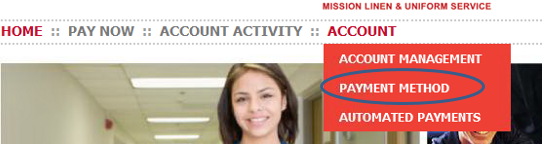
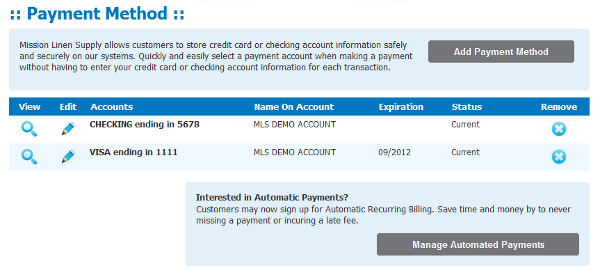
Q: How do I add a Payment Method?A: From the Home screen, place your cursor over the Account tab and a drop down menu will appear. Select Payment Method. Select either eCheck or credit card from the drop down menu and add the details of your account. Click Save.
|
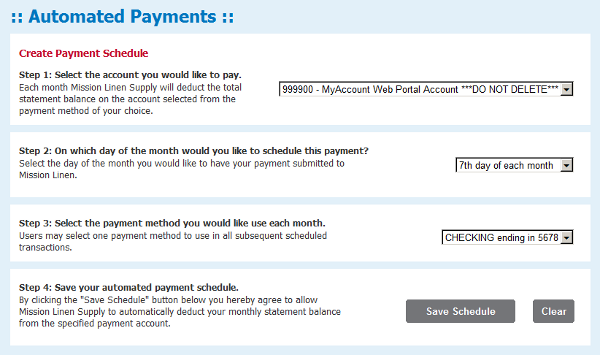
Q: How can I sign up for automatic payments (automatic recurring billing)? Only one user can set this up per account. The username/email that sets this up will receive a 'Payment Receipt' when the automatic payment is made.A: You must first add a payment method (eCheck or credit card). See the question: "How do I add a Payment Method?" above for instructions. Once you have completed that step, there are a few ways to turn on automated payments: OPTION 1: From the Home screen, place your cursor over the Account tab and a drop down menu will appear.
OPTION 2: After you have added a payment method (eCheck or credit card), you will be prompted to Manage Automated Payments. Click on Manage Automated Payments and follow the steps outlined in the figure above. (for each account if you have more than one)
OPTION 3: After you have successfully made a payment on the My Account website, you will be sent to a thank you for your payment screen. There you will be prompted to Manage Automated Payments. Follow the steps outlined above in the figure above option 2. (/Remember you will need to edit/remove your Payment Method when the Credit Card expires or eCheck Account changes) |
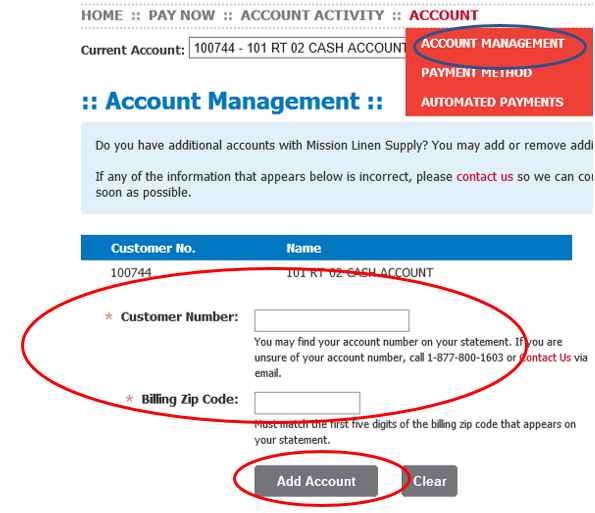
Q: I have more than one account. How do I add an account?A: Click on the Account tab and Account Management - fill in Customer number and billing zip code of the account you want added, click 'Add Account' button.
|
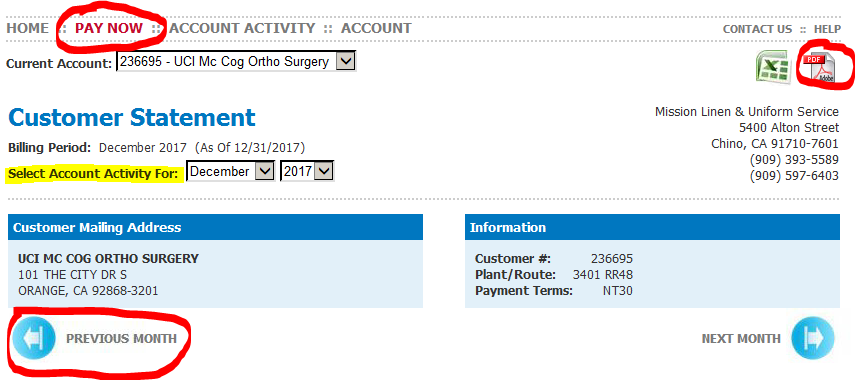
Q: How do I view/print my monthly statement?A: Click on the 'Pay Now' tab. This will show all open/current invoices. Click on the 'Previous Month' button or change the 'Select Account Activity For:' to the month and year you want. Then click on the 'Generate PDF' icon in the upper right corner.
|
Q: I set up for ARB but only one of my accounts is getting paid?A: You must set up each account separately on ARB with the Payment Method. |
Q: How do I remove an employee who no longer has access?A: Click on "Help? or Chat"" link in the bottom right hand corner of the site and provide the customer number and the employee's name/email who has left and the name/email you want it changed to. Also, state if you want the change made for the electronic invoices and statements. |
Comments
0 comments
Please sign in to leave a comment.